
Overview of Entra for LSEG Workspace
With LSEG moving to a modern, centralised identity with Microsoft Entra, your users can now sign in using their existing corporate credentials, without the need for separate usernames, passwords, and authentication methods.
Learn how Microsoft Entra ID integration offers a more seamless sign-in experience to LSEG Workspace.
About Self-Service Identity Linking
As part of the integration process, users can connect their existing Workspace account to their corporate Microsoft identity on their own. This process is known as Self-Service Identity Linking.
This process is mostly hands-off for admins – no account creation or setup is required, although some of the actions you may need to take is approving access if your organisation’s security controls require it.
Once linked, this approach provides:
- Single, secure identity layer across Workspace and connected workflows
- Corporate SSO –one login across applications
- Centralised policy control (i.e., MFA, Conditional Access)
- Significant installation and deployment time savings
Supporting your users
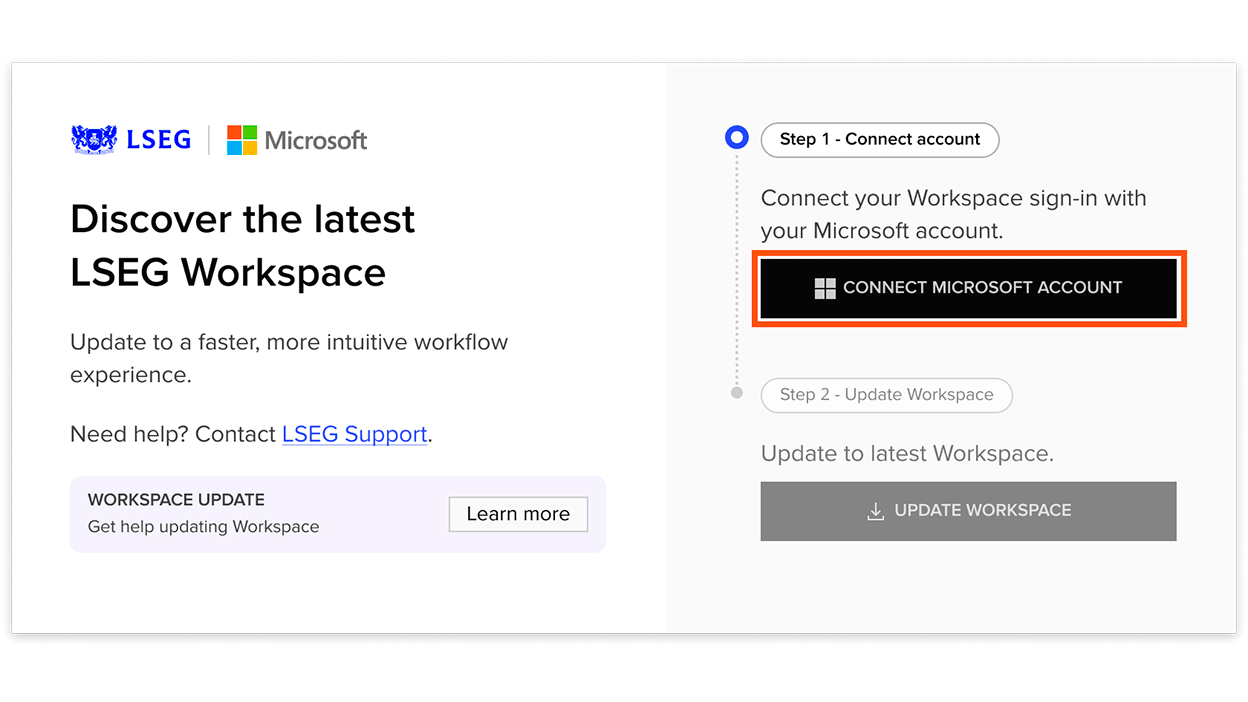
The next time a user signs in to Workspace, they’ll see a prompt asking them to connect their Workspace account with their organisation’s account.
They complete this themselves by selecting Connect Microsoft Account and signing in with their corporate credentials.
Depending on your organisation’s permissions, users may see a message indicating that administrator approval is required.
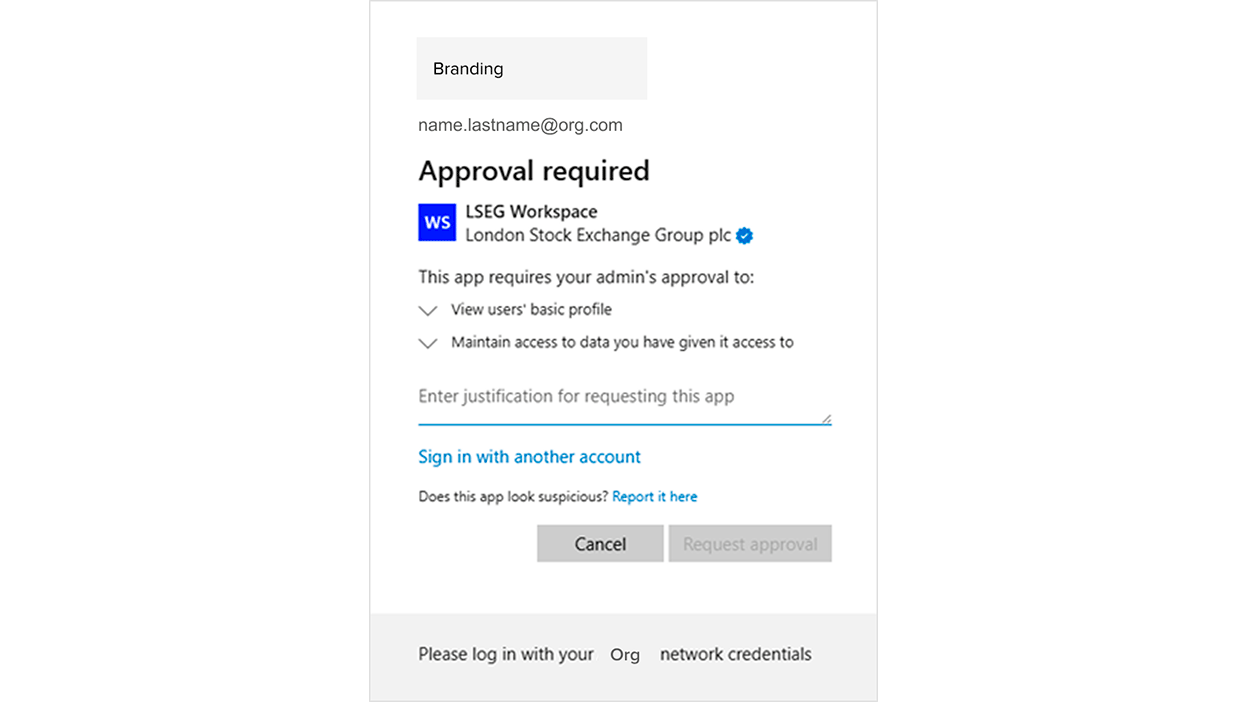
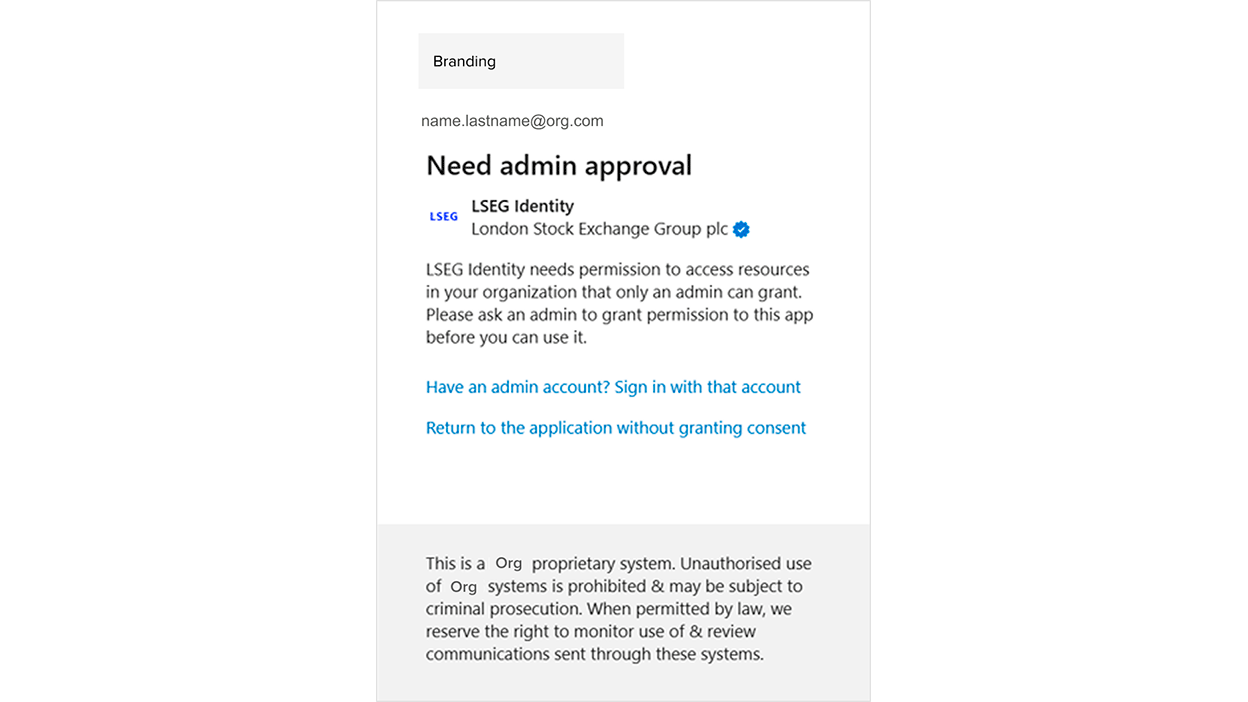
If this happens, you will need to grant admin consent to the required LSEG applications before users can continue.
To grant consent, open the links below and select Accept:
- LSEG Identity
LSEG Identity consent
- LSEG Workspace
LSEG Workspace Consent
Granting consent is a one-time action – once approved, users can retry the process and complete the connection themselves, and they won’t need individual approval going forward.
You can grant this in advance to avoid users encountering the approval prompt or wait until a user reports it.
Further help
If you are having problems installing Workspace HERE, see Troubleshooting Workspace HERE installation errors.
If you have any further questions or issues, contact LSEG Support.
For more information follow Microsoft’s guidelines
Support
-
Further help
If you have any questions or issues, please contact LSEG Support -
Connect LSEG Workspace to Microsoft Entra for web users of LSEG WorkspaceFor web users of LSEG Workspace
-
Upgrading to LSEG Workspace with Microsoft EntraLearn how to link your organization's Microsoft Entra account with LSEG Workspace, enable secure single sign-on (SSO), and upgrade to the latest Workspace experience.
-
For detailed configuration stepsLSEG Workspace Entra Administrator Guide